Full video walkthrough
Coming soon
Remember: 48 hours, worn continuously
The study needs an unbroken 48-hour recording. The Bangle.js 2 is not water-protected — take it off before showering.
1
Install the app and enter your code
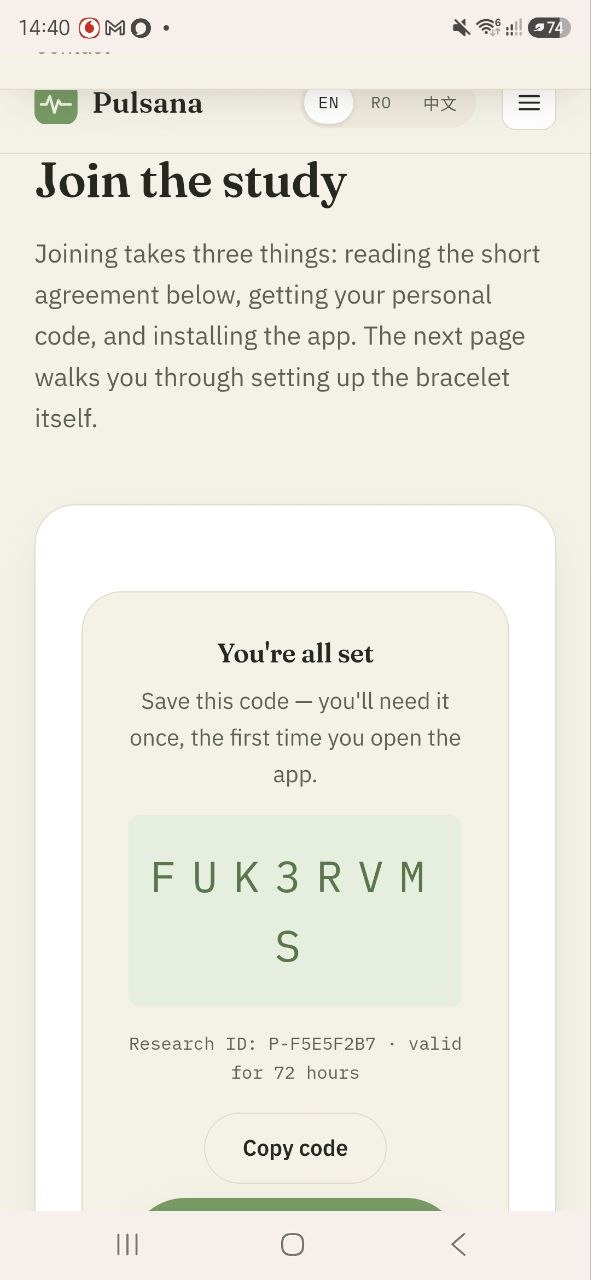
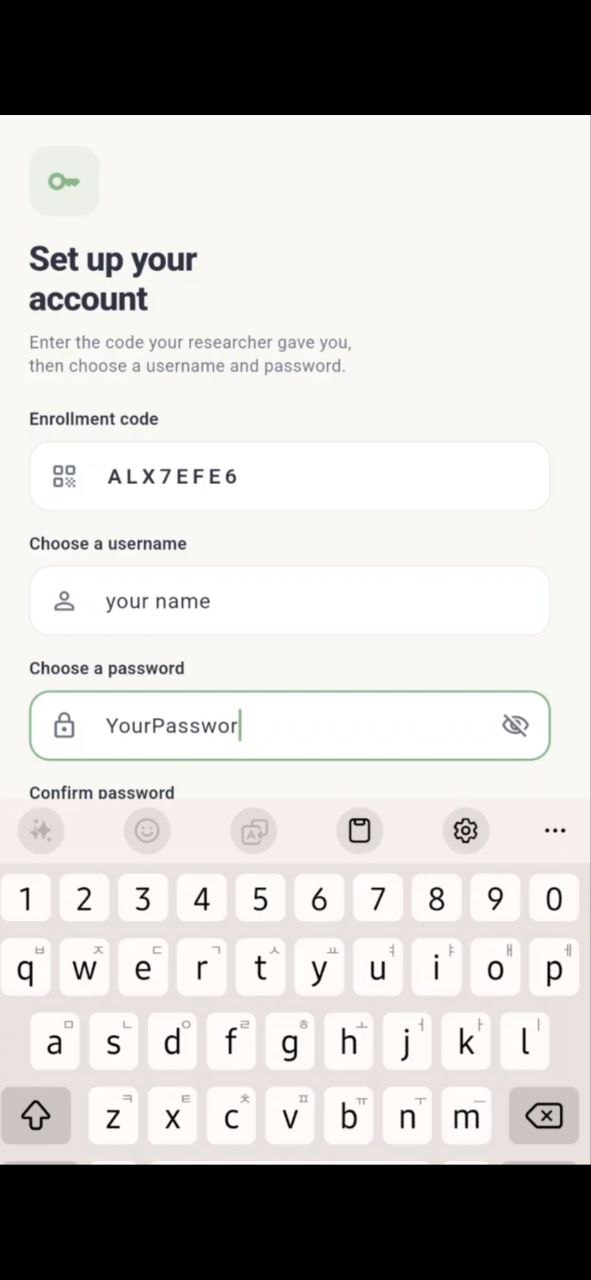
Download PulseWatch AI, open it, choose “I have an enrollment code,” and paste the code from the website.
2
Find your bracelet
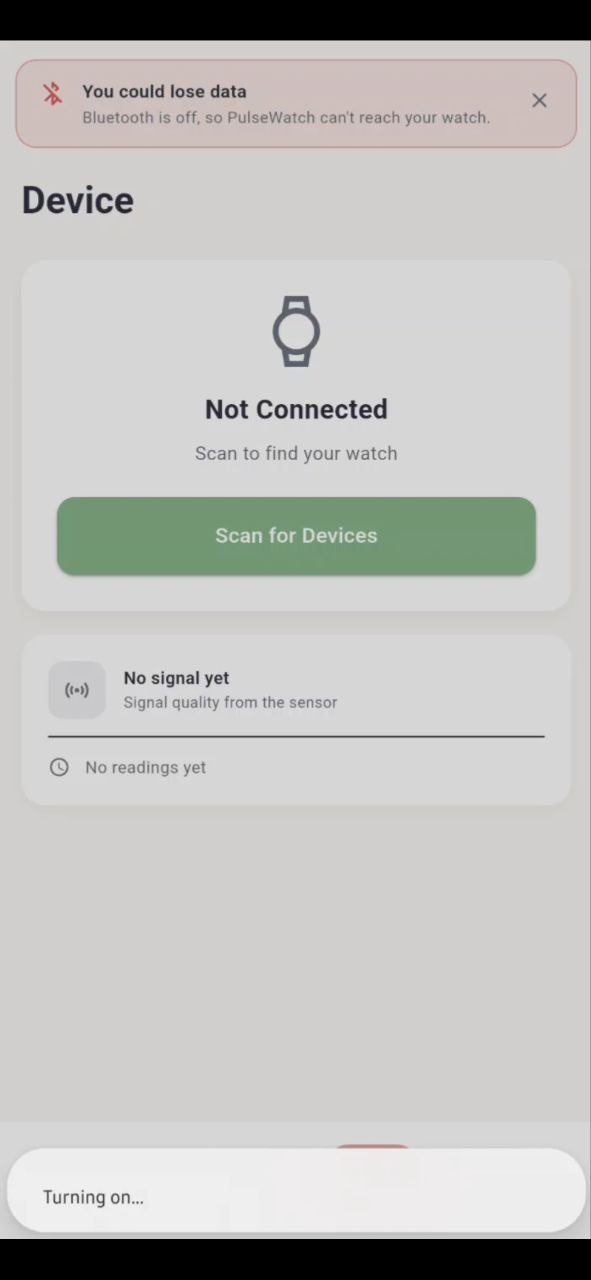
Tap the device icon at the bottom of the screen, then tap “Scan for device.”
3
Connect to your bracelet
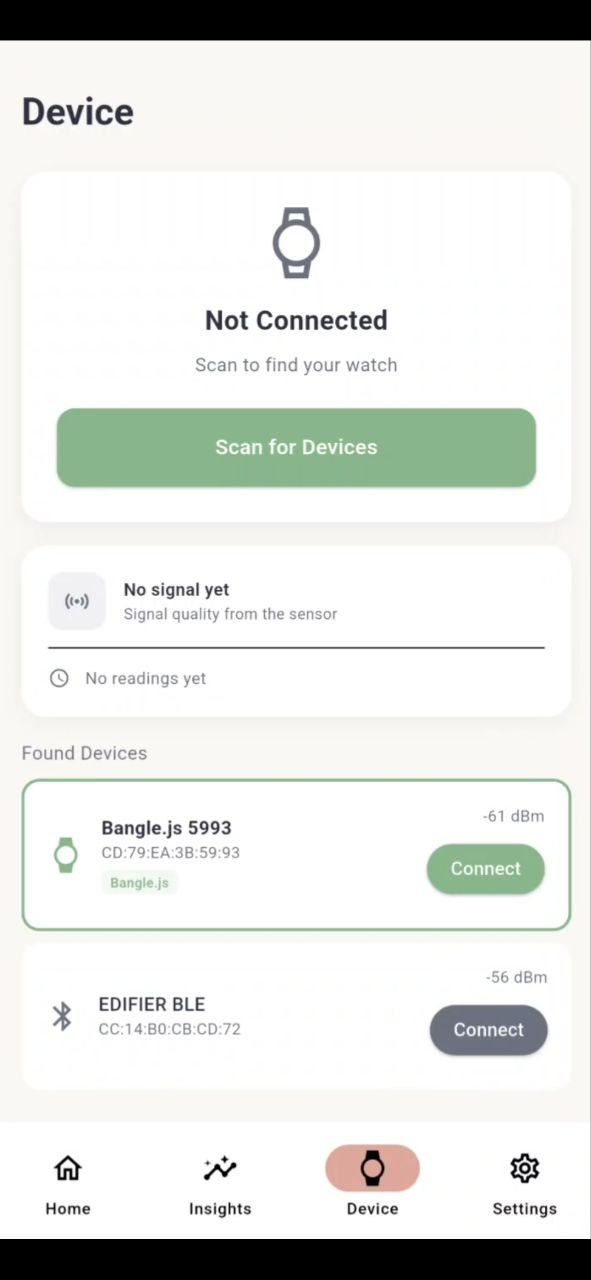
When it appears in the list, tap it to connect. It should be listed as —
[ Bluetooth name to be filled in — e.g. Bangle.js xxxx ]
4
Get to know your Bangle.js 2
A few things that make the watch easier to use from the first minute:
- Hold the button for ~2 seconds to jump back to the clock face.
- A lock icon top-left means the touchscreen is off; press the button to unlock.
- From the clock face, press the button to open the App Launcher, then drag to scroll and tap to open.
- In text menus, drag to scroll and tap to select; in number menus, drag to change the value and tap to confirm.
5
Open PulseWatch AI on the watch and start recording
Find PulseWatch AI in the App Launcher, open it, then tap the “Record” box to begin.
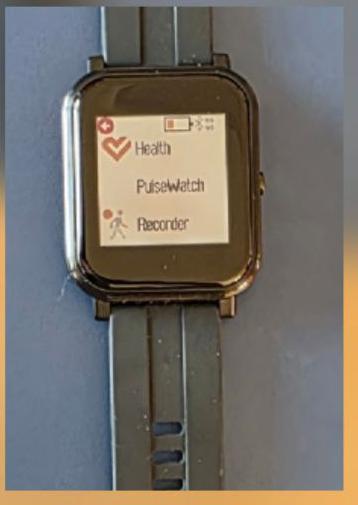
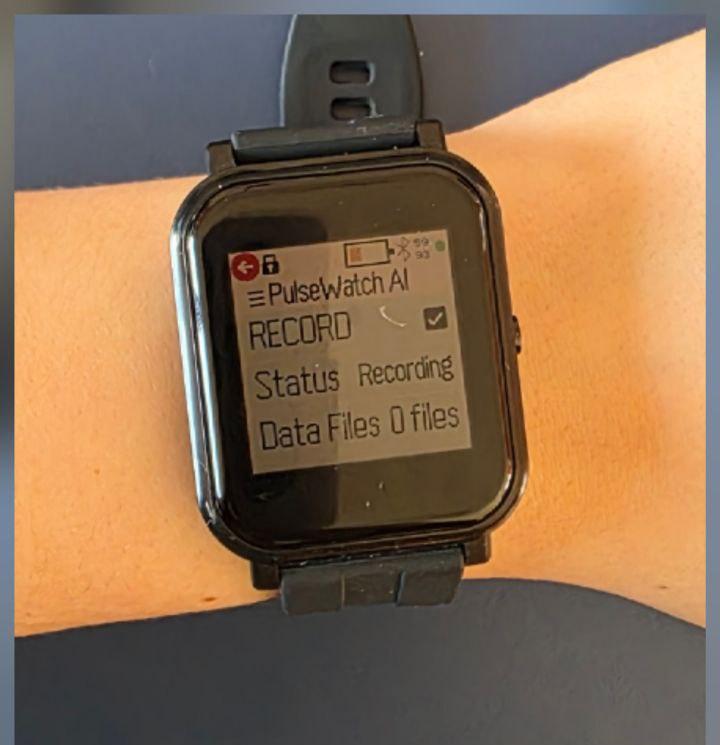
Remember: 48 hours, worn continuously
Keep it on day and night, off only for showers.
6
Charging
The magnetic charging cable plugs into any USB port and only carries power, no data. Don't force it if it doesn't seat easily, and don't leave it plugged in unattended.